
SQL Server on Private Cloud: Licensing, Performance, and Architecture Tips
March 6, 2026
Linux VM Hardening Checklist: What US IT Teams Should Standardize
March 6, 2026
Windows Server Hosting in the USA: Security and Patch Best Practices
In today’s digital landscape, businesses rely heavily on robust server solutions to manage their operations effectively. Windows Server hosting has become a popular choice due to its versatility, user-friendly interface, and extensive features. However, with the increasing cyber threats and the need for compliance, ensuring the security of your Windows Server is paramount. This article will explore the best practices for maintaining security and managing patches effectively in the context of Windows Server hosting in the USA.
If you are moving existing Windows Server workloads off on-premises hardware rather than starting fresh, our guide to migrating Windows Server workloads to cloud infrastructure walks through assessing your environment, choosing between lift-and-shift, refactor, rebuild and hybrid approaches, and validating applications after the move.
Understanding Windows Server Hosting
Windows Server is a server operating system developed by Microsoft, designed to manage network resources, run applications, and provide various services to businesses and organizations. Hosting a Windows Server involves utilizing a dedicated or virtual server to operate Windows Server software, allowing businesses to leverage its capabilities for various IT functions.
Why Choose Windows Server Hosting?
There are several reasons why businesses opt for Windows Server hosting, including:
- Familiarity: Many organizations already use Windows environments, making the transition to Windows Server seamless.
- Integration: Windows Server integrates well with other Microsoft products, enhancing productivity and collaboration.
- Support: Microsoft offers extensive support and resources, ensuring businesses can resolve issues quickly and efficiently.
Security Challenges in Windows Server Hosting
While Windows Server hosting offers numerous benefits, it is not without its challenges, particularly regarding security. Some common security issues include:
- Malware and Ransomware: Cybercriminals often target servers to deploy malware or ransomware, which can lead to data loss and financial damage.
- Unauthorized Access: Weak authentication mechanisms can open the door to unauthorized users.
- Outdated Software: Failing to keep software up to date can expose vulnerabilities that hackers can exploit.
Best Practices for Windows Server Security
To mitigate security risks associated with Windows Server hosting, businesses should implement the following best practices:
1. Regular Updates and Patching
One of the most critical aspects of server security is keeping the operating system and applications updated. Microsoft regularly releases security patches and updates for Windows Server to address vulnerabilities and enhance performance. Organizations should:
- Enable automatic updates to ensure timely installation of critical patches.
- Regularly check for updates and manually install any that may have been missed.
- Test updates in a staging environment before deploying them in production to avoid compatibility issues.
2. Implement Strong Access Controls
Controlling access to the Windows Server is essential for preventing unauthorized access. Businesses should:
- Use strong, unique passwords for all accounts.
- Implement multi-factor authentication (MFA) to add an extra layer of security.
- Limit user permissions based on roles to minimize access to sensitive data.
3. Configure Firewall Settings
Firewalls play a crucial role in protecting Windows Servers by monitoring and controlling incoming and outgoing network traffic. To enhance security, organizations should:
- Configure the built-in Windows Firewall to restrict access to essential services only.
- Regularly review and update firewall rules to adapt to changing business needs.
- Utilize advanced firewall technologies, such as intrusion detection systems (IDS) and intrusion prevention systems (IPS).
4. Monitor Server Activity
Continuous monitoring of server activity helps identify and respond to potential security threats. Businesses should:
- Implement security information and event management (SIEM) solutions to analyze logs and detect anomalies.
- Regularly review event logs for unauthorized access attempts or unusual behavior.
- Establish an incident response plan to address security breaches promptly.
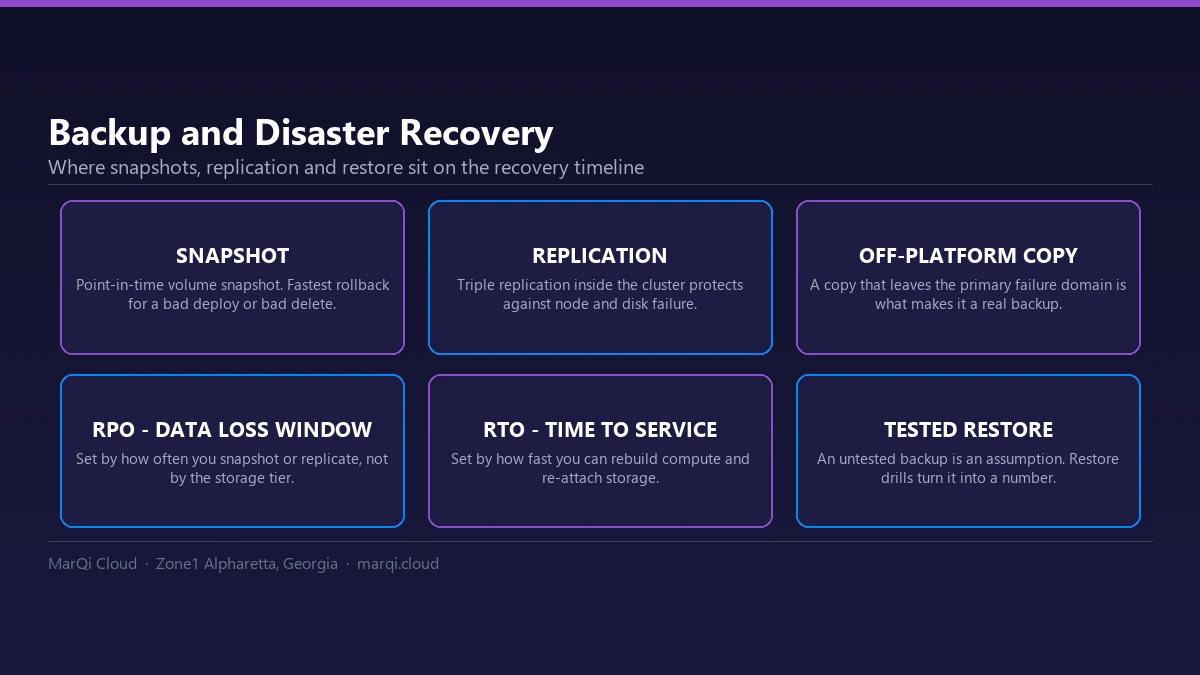
5. Backup Data Regularly
Data loss can occur due to various reasons, including hardware failure, accidental deletion, or cyberattacks. Regularly backing up data is crucial for business continuity. Organizations should:
- Implement automated backup solutions to ensure regular backups are performed.
- Store backups offsite or in a secure cloud environment to protect against local disasters.
- Test backup restoration processes to ensure data can be recovered quickly in case of an emergency.
6. Educate Employees on Security Awareness
Human error is often a significant factor in security breaches. To mitigate this risk, businesses should invest in employee training and awareness programs. Organizations should:
- Conduct regular security training sessions to educate employees about phishing attacks, social engineering, and safe browsing practices.
- Implement policies for handling sensitive information and reporting suspicious activities.
- Encourage a culture of security awareness throughout the organization.
Patch Management Best Practices
Effective patch management is vital for maintaining the security and performance of Windows Servers. Here are some best practices for managing patches:
1. Develop a Patch Management Policy
Creating a comprehensive patch management policy outlines the procedures for identifying, testing, and deploying patches. This policy should include:
- Roles and responsibilities for patch management.
- Criteria for prioritizing patches based on severity and impact.
- Timelines for patch deployment and review.
2. Use Automation Tools
Automation tools can streamline the patch management process, reducing the time and effort required to manage updates. Organizations should:
- Utilize tools like Windows Server Update Services (WSUS) to automate the deployment of patches.
- Leverage third-party patch management solutions for non-Microsoft applications.
3. Test Patches Before Deployment
Testing patches in a controlled environment before deployment helps identify potential issues that could affect system performance. Organizations should:
- Create a staging environment that mimics the production environment for testing purposes.
- Document any issues encountered during testing and adjust the deployment strategy accordingly.
4. Monitor and Review Patch Status
Regularly monitoring the patch status of Windows Servers ensures that all systems are up to date. Organizations should:
- Establish a reporting mechanism to track the status of patches across all servers.
- Review patch deployment logs for any errors or issues that need to be addressed.
Conclusion
Windows Server hosting in the USA offers businesses a powerful platform for managing their IT infrastructure. However, with the increasing threat landscape, ensuring the security of your servers and implementing effective patch management practices is crucial. By following the best practices outlined in this article, organizations can enhance their server security, protect sensitive data, and ensure seamless operations.
Frequently Asked Questions (FAQs)
1. What is Windows Server hosting?
Windows Server hosting refers to utilizing a dedicated or virtual server to run the Windows Server operating system, enabling businesses to manage their IT infrastructure, applications, and resources effectively.
2. Why is security important for Windows Server hosting?
Security is crucial for Windows Server hosting to protect sensitive data, prevent unauthorized access, and mitigate the risk of cyberattacks that can lead to data loss or financial damage.
3. How often should I update my Windows Server?
It is recommended to regularly check for updates and apply critical patches as soon as they are released. Enabling automatic updates can help ensure timely installation of essential security patches.
4. What are the best practices for password management in Windows Server?
Best practices for password management include using strong, unique passwords, implementing multi-factor authentication, and regularly updating passwords to enhance security.
5. How can I monitor server activity for potential security threats?
Implementing security information and event management (SIEM) solutions and regularly reviewing server logs can help identify and respond to potential security threats effectively.
6. What should I include in a patch management policy?
A patch management policy should outline roles and responsibilities, criteria for prioritizing patches, and timelines for deployment and review.
7. How can I backup my Windows Server data effectively?
Implementing automated backup solutions, storing backups offsite or in a secure cloud environment, and regularly testing backup restoration processes can help ensure data is protected.
8. What training should I provide to employees regarding security awareness?
Employees should receive training on identifying phishing attacks, safe browsing practices, handling sensitive information, and reporting suspicious activities to mitigate security risks.